
Your Self Assessment login HMRC route starts on GOV.UK. You sign in with your Government Gateway user ID and password, or with your GOV.UK One Login email and password. Then you enter a security code sent to your phone or app, and your Self Assessment account opens.
Once you are in, you can file your tax return, check what you owe and find your UTR number. You can also view past returns and print your tax calculation.
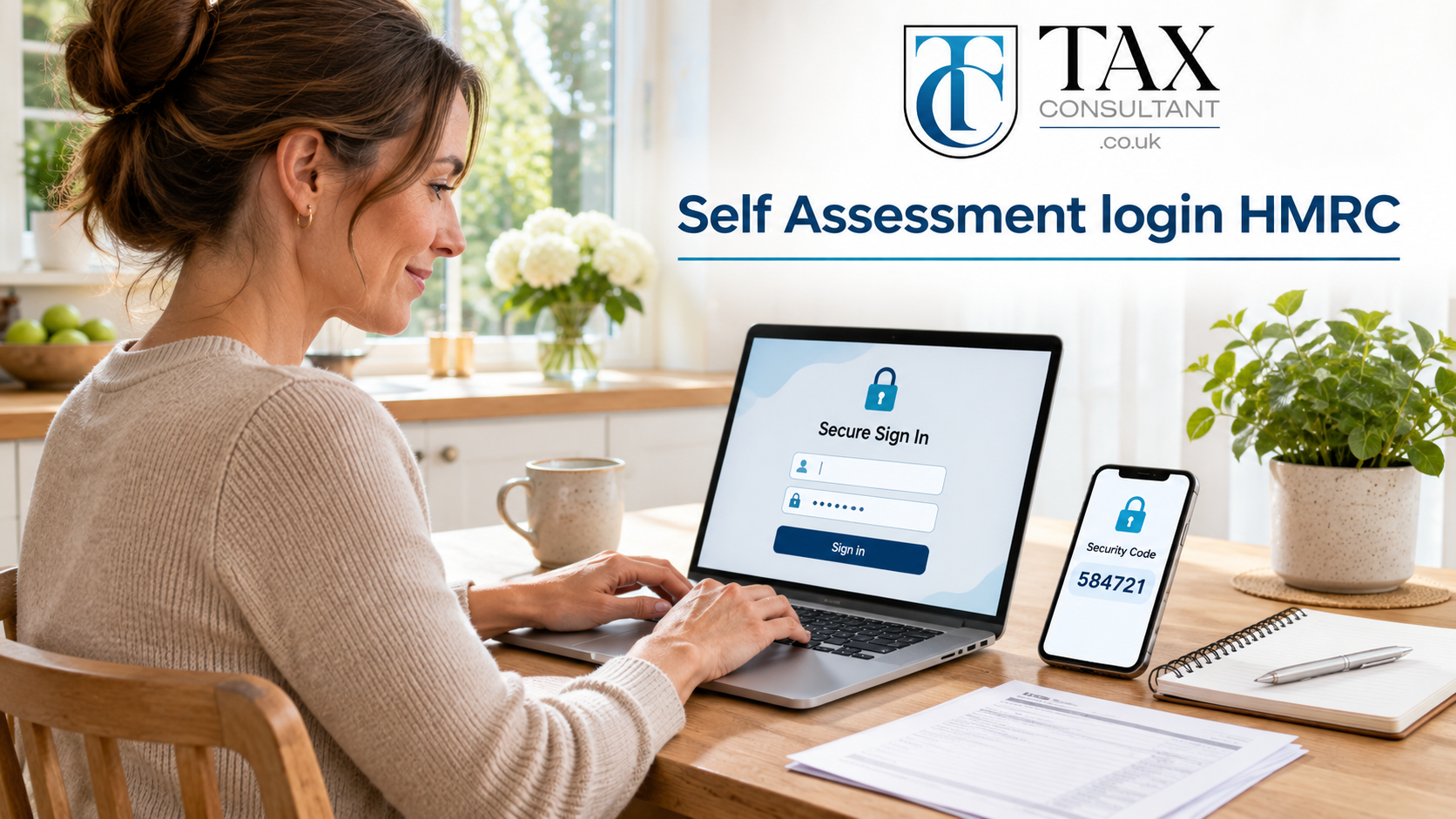
Quick answer: how to log in
- Go to the HMRC online services sign-in page on GOV.UK.
- Enter your Government Gateway user ID and password, or your One Login email and password.
- Type in the access code HMRC sends to your phone, landline or authenticator app.
- Open Self Assessment from your account home page.
That is the simple version. In real life, people get stuck on a missing activation code, a lost user ID or a second account they forgot they made. So this guide walks through each step, then fixes the problems that block most logins. If you also want help with the return itself, read our guide to completing your tax return online.
Where to Log In for HMRC Self Assessment
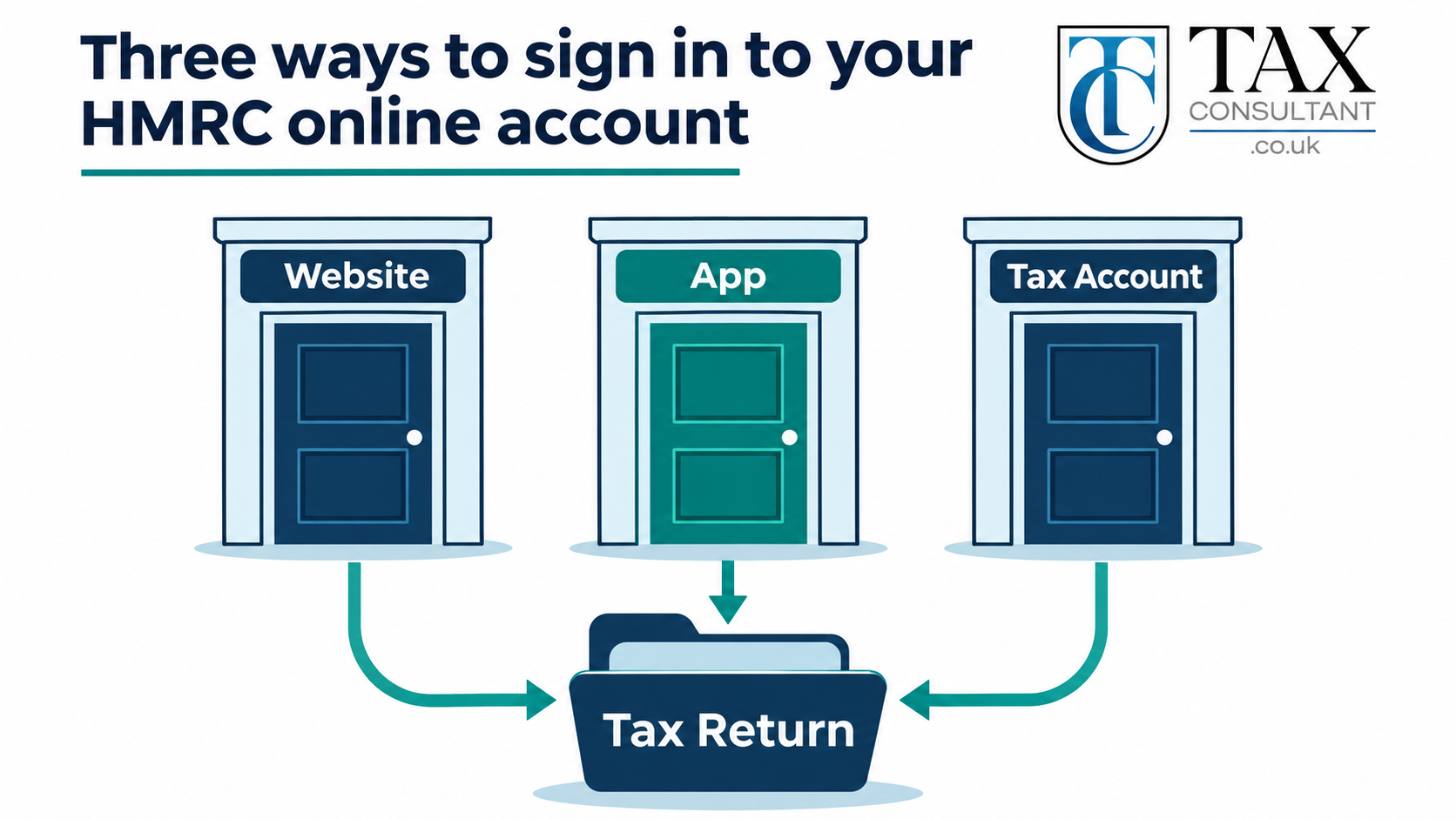
There are three ways into the same HMRC online account. Each one leads to your Self Assessment record, as long as you use the same sign-in details every time.
The GOV.UK log-in page
This is the main door. The GOV.UK page for filing your Self Assessment tax return online has a Sign in button that takes you straight to HMRC. Bookmark that page, not a search result, because fake sites copy HMRC pages around the January deadline.
The HMRC app
The free HMRC app works on iPhone and Android. After the first setup, you can sign in with your face, fingerprint or a PIN. The app also shows your UTR, your tax calculation and payments due.
Your personal or business tax account
If you already use a personal tax account for PAYE, Self Assessment appears inside it. From there you can submit, view or manage a return. Sole traders and company directors may use the business tax account instead. In both cases, Self Assessment only shows once it is linked to your sign-in details.
What You Need Before You Log In
Have these details ready before you start. Most failed logins happen because one of them is missing.
- Your sign-in details. A Government Gateway user ID (up to 12 characters) and password, or a GOV.UK One Login email address and password.
- Your phone or authenticator app. HMRC sends a 6-digit access code here every time you sign in.
- Your UTR number. This is your 10-digit Unique Taxpayer Reference. You need it when you add Self Assessment to your account. You can find a lost UTR on GOV.UK.
- Your National Insurance number. HMRC uses it to check your identity.
- Photo ID, if asked. HMRC may ask you to prove your identity with a passport or driving licence.
Your user ID and your UTR are not the same thing. The user ID is how you sign in. The UTR is the reference for your tax record. So keep both somewhere safe, away from your password.
Government Gateway or GOV.UK One Login: Which Do You Use?
HMRC accepts two types of sign-in details. Government Gateway uses a user ID and a password. GOV.UK One Login uses an email address and a password.
The rule from HMRC is simple. If you already use HMRC online services, keep using the details you have. That stays true even if you have a One Login account from another government service, such as a driving licence or benefits account.
If you have never used HMRC online services, choose “Create new sign in details” on the sign-in page. The service then guides you to set up Government Gateway or One Login. HMRC is moving more new users to One Login over time, so many first-time filers now land there.
The biggest mistake here is making a second account. A new account starts empty, so your Self Assessment record does not appear in it. As a result, you see a blank account or an error. If the sign-in page looks different from last year, sign in with your old details first and follow the prompts.
One more point matters if you file through software. Some HMRC-recognised software still asks for Government Gateway details at the point of submission. So check what your software needs before the deadline week.
Which Sign-In Route Fits Your Situation
Your starting point depends on who you are and whether you have filed before. Find your row below, then follow the matching section of this guide.
| Your situation | Where to start | What to watch for |
|---|---|---|
| Employee with a second income or side job | Personal tax account | Self Assessment appears as a link once it is active |
| Sole trader or freelancer | Business tax account or GOV.UK sign-in page | Add Self Assessment with your UTR if it is not there |
| Landlord with rental income | Personal tax account | Register first if this is your first rental year |
| First-time filer | Register for Self Assessment, then sign in | Wait for your UTR and activation code by post |
| Filed in a past year, then stopped | GOV.UK sign-in page | You may need to reactivate your account first |
| New user with no HMRC sign-in yet | Create new sign in details | Usually set up through GOV.UK One Login |
| Using HMRC-recognised software | Your software’s submit screen | Software may still ask for Government Gateway details |
Two groups use this table most. People with a second job often find out they need a return late, so our guide to the second job tax rate explains how that income is taxed. Landlords can read how to cut tax on rental income before they file.
How to Log In to HMRC Self Assessment Step by Step
Follow these steps if you already have sign-in details and Self Assessment is active on your account.
- Open the sign-in page. Go to GOV.UK and select Sign in on the HMRC online services page.
- Pick your sign-in type. Choose Government Gateway or GOV.UK One Login, based on the details you used before.
- Enter your details. Type your user ID and password, or your email and password.
- Enter the access code. HMRC sends a 6-digit code to your phone, landline or authenticator app. Type it in within a few minutes.
- Prove your identity if asked. HMRC may ask for photo ID or details from a payslip, P60 or passport.
- Open Self Assessment. On your account home page, select Self Assessment, then choose the tax year.
- Start or continue your return. You do not have to finish in one go. Save your entries and come back later.
You can file your return any time from 6 April after the tax year ends. The online deadline is 31 January. HMRC systems slow down in the last week of January, so log in early. GOV.UK lists the full Self Assessment deadlines and the penalties for late returns.
First Time Logging In? Register and Activate Self Assessment
You cannot log in to Self Assessment until HMRC knows you need to file. So first-time filers have two jobs. They register, then they activate.
Step one: register for Self Assessment
Use the GOV.UK service to register for Self Assessment. Register by 5 October after the end of the tax year you need to file for. Not sure you need a return at all? GOV.UK has a tool to check if you need to send a tax return.
After you register, HMRC sends your UTR number. It usually arrives by post, and you may also see it in your personal tax account or the HMRC app.
Step two: add Self Assessment to your account
Next, sign in and add Self Assessment to your account. In the business tax account, choose “Get online access to a tax, duty or scheme”, then pick Self Assessment and enter your UTR. HMRC’s guide to using your business tax account shows each screen.
Step three: enter your activation code
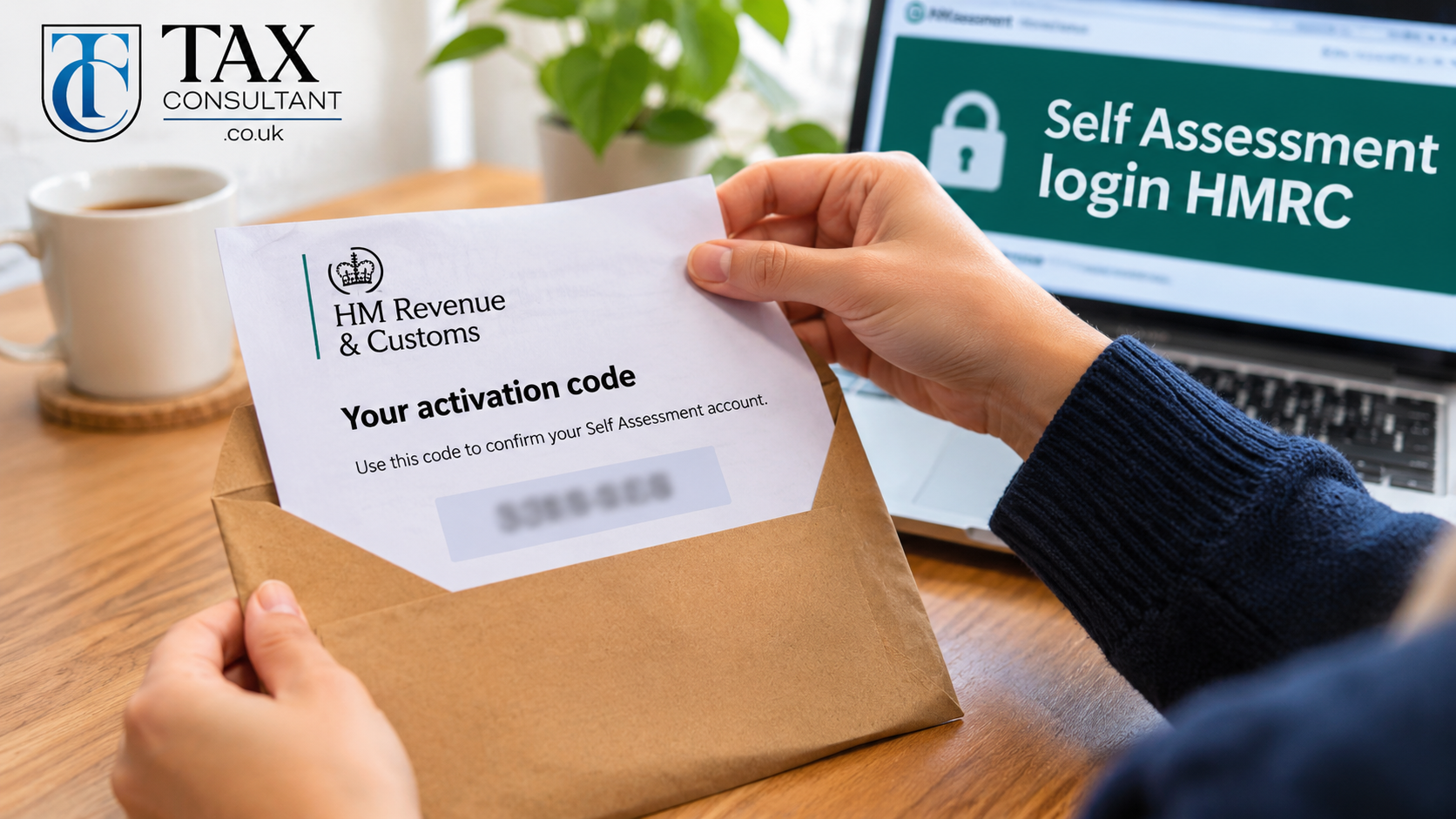
HMRC then posts an activation code to the address it holds for you. It can take up to 10 days to arrive. The code also expires after 28 days, so use it as soon as it lands. Sign in, type the code and Self Assessment appears on your account.
If the code expires or gets lost, request a new one from inside your account. Also check that HMRC has your current address, because the code only goes by post.
Filed before, then stopped? Reactivate first
This step catches many people out. If you sent returns in the past, then HMRC closed your record, you need to reactivate it. Do not register as a new person. The GOV.UK registration page has a route for people who have filed before. If you skip this and file anyway, your return may be delayed.
2-Step Verification and Access Codes
Every HMRC Self Assessment login needs a second check. After your password, HMRC asks for a 6-digit access code. This protects your tax record if someone learns your password.
You can get the code in three ways:
- a text message to your mobile
- a voice call to a landline
- an authenticator app, such as Google Authenticator or Microsoft Authenticator
The HMRC app is another strong option. Once it is set up, it can confirm your sign-in on your phone. That helps if you travel or change your number often.
You can change how you receive your access code from the security settings in your account. It is wise to add a backup method now. For example, add a landline as well as a mobile. Then a lost or broken phone does not lock you out in January.
Lost Your User ID, Password or Phone?
You can recover most lost details yourself. HMRC shows the recovery options when you try to sign in, and its page on problems signing in explains each one.
Forgotten Government Gateway user ID
First, search your email inbox for “Government Gateway user ID”. HMRC emailed it when you created the account. If that fails, choose the option to recover your user ID on the sign-in page. HMRC sends it to the email address on your account after a few security questions.
Forgotten password
Choose the forgotten password option and enter your user ID. HMRC then sends a reset link or code. Pick a new password you have not used on any other site.
New phone or no access code
Sign in with your user ID and password as normal. When HMRC asks for the access code, look for the help link on that screen. You can then confirm your identity and set up a new way to receive codes.
Locked out after too many attempts
HMRC locks your account for a period after repeated wrong attempts. Wait for the lock to end, then try once, slowly. Repeated guessing only restarts the lock.
Still stuck?
Ask HMRC’s digital assistant first. If it cannot help, contact the HMRC online services helpdesk. This team handles login problems, access codes and error messages. Expect long waits in January, so call well before the deadline.
Common HMRC Login Errors and How to Fix Them
Most HMRC login errors have a simple cause. Match the message you see to the fix below.
| What you see | Likely cause | How to fix it |
|---|---|---|
| You cannot access this service from your account | Self Assessment is not linked to these sign-in details | Add Self Assessment with your UTR, or sign in with your older account |
| Your details do not match our records | A typo in your UTR or National Insurance number | Check each digit against your HMRC letter and try again |
| Activation code has expired | More than 28 days passed since HMRC posted it | Request a new code from inside your account |
| No access code arrives | Old phone number on your account | Use the voice call or app option, or recover your account |
| Authentication error when submitting through software | Self Assessment is not active on the user ID you entered | Activate Self Assessment on that user ID, then submit again |
| Service unavailable | Busy periods or planned maintenance | Try again later, and check HMRC’s service availability page |
Two habits prevent most of these errors. Use one set of sign-in details for all your tax affairs. Also, keep your phone number and address up to date in your account.
When You Cannot File Through HMRC Online
A working login does not always mean you can file through HMRC’s own service. GOV.UK says you cannot use it to file:
- a partnership return
- a return for a trust or an estate
- a return if you lived abroad as a non-resident
- a return that reports more than one chargeable event gain, for example from life insurance
- a return if you get trust income, are a Lloyd’s underwriter or are a religious minister
In these cases, use HMRC-recognised commercial software or the Self Assessment paper forms. You also need a UK address and a National Insurance number to activate Self Assessment online. Without them, paper forms are usually the route.
Non-resident and overseas cases often carry extra tax questions too. Our pages on overseas income and gains and residence, domicile and double tax relief explain the rules that apply.
How to Spot Fake HMRC Login Pages
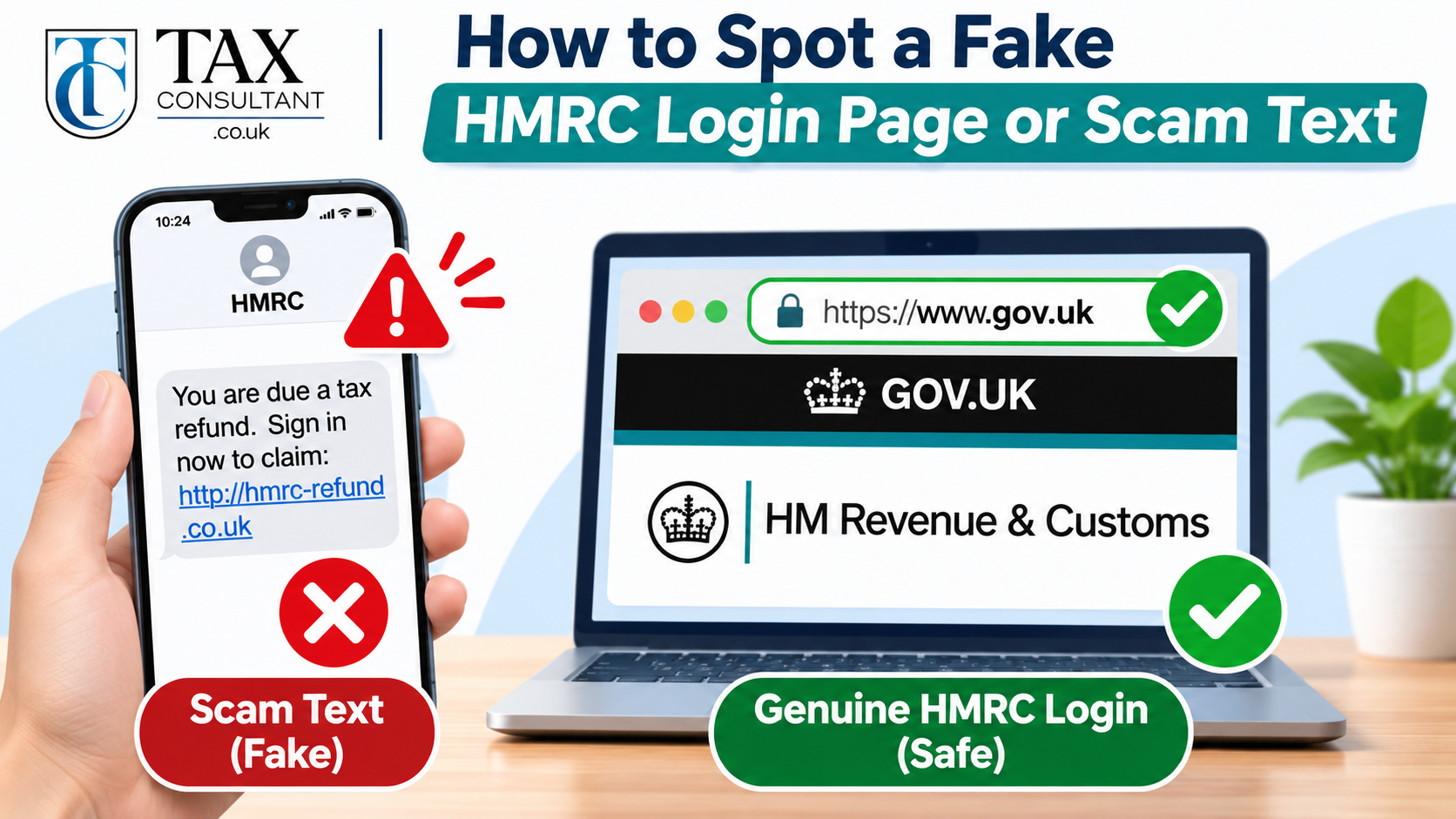
Scammers copy the HMRC login page, especially from December to January. Their goal is to steal your user ID, password and bank details. Use these checks every time you sign in.
- Check the web address. Real HMRC sign-in pages sit on gov.uk or tax.service.gov.uk. Anything else is not HMRC.
- Never log in from a link in a text or email. HMRC does not text or email you a link to claim a tax refund. Type the address yourself or use your bookmark.
- Ignore threats and urgent deadlines in messages. Pressure to act “within 24 hours” is a common scam sign.
- Never share your access code. HMRC staff will never ask for it.
If you get a suspicious message, report it through GOV.UK’s page on reporting HMRC phishing emails, texts and calls. If you think you entered your details on a fake site, change your password at once and contact HMRC.
Let a Tax Advisor Deal With HMRC for You
You never need to share your HMRC login with anyone. Instead, you can authorise a tax advisor as your agent. The advisor sends you a request, you sign in with your own details and approve it. After that, your advisor can view your Self Assessment record, file your return and speak to HMRC for you. Your password stays private.
This route suits people who are short on time or facing a complex return. It also helps when HMRC sends a letter you do not understand. For example, a compliance check after filing needs a careful reply. Our team supports clients through an individual compliance review and wider HMRC disputes. If you missed income on past returns, a voluntary disclosure can put things right.
We also help you plan ahead, so next year’s bill is smaller. See our tax planning service, or read our guide on tax advice in the UK to compare your options. We work with sole traders, landlords and company directors across the UK.
Need help with your Self Assessment? Our Self Assessment tax return support starts from £249. Call 0330 133 7827, email hello@taxconsultant.co.uk or contact our tax advisors today.
Frequently Asked Questions
Where do I log in to HMRC Self Assessment?
Go to the HMRC online services sign-in page on GOV.UK, or use the free HMRC app. Sign in with your Government Gateway or GOV.UK One Login details, then enter the access code HMRC sends you.
Is my Government Gateway user ID the same as my UTR?
No. Your user ID lets you sign in to HMRC online services. Your UTR is the 10-digit reference for your tax record. You need both to file a Self Assessment return.
How long does the Self Assessment activation code take?
HMRC posts the activation code to your address, and it can take up to 10 days. The code expires after 28 days, so enter it as soon as it arrives.
Can I log in to Self Assessment with GOV.UK One Login?
Yes. HMRC accepts One Login for personal tax services, including Self Assessment. If you already have Government Gateway details for HMRC, keep using those instead.
Why can I see my personal tax account but not my tax return?
This usually means Self Assessment is not active on that sign-in, or you made a second account. Add Self Assessment with your UTR, or sign in with the details you used for past returns.
Can someone else log in to my HMRC account for me?
No one should use your login details. Instead, you can authorise a tax advisor as your agent. They then use their own agent account to deal with HMRC for you.
What happens if I cannot log in before 31 January?
A late return brings an automatic £100 penalty, even if you owe no tax. So fix login problems early, and call the HMRC online services helpdesk well before the deadline.